
Documentation
Everything you need to run your hiring pipeline with InterviewDashboard — from first install to finalized feedback forms. Every screen below is the real app.
Overview
InterviewDashboard is a desktop app that runs a recruiting pipeline end-to-end: it screens resumes against your open roles, turns your interview scripts into scoring rubrics, matches interview transcripts to candidates, and drafts evidence-scored interview reviews you finalize and export as formatted feedback forms.
Two design choices shape everything else:
- Your AI subscription does the work. The app drives the Claude Code, Codex, or Kimi Code CLI already signed in on your machine. There are no API keys and no per-call fees — usage bills to the subscription you already pay.
- Local-first. Candidates, roles, scores, and reviews live in a local database and plain folders on your machine. Document text goes only to the AI vendor you sign in with.
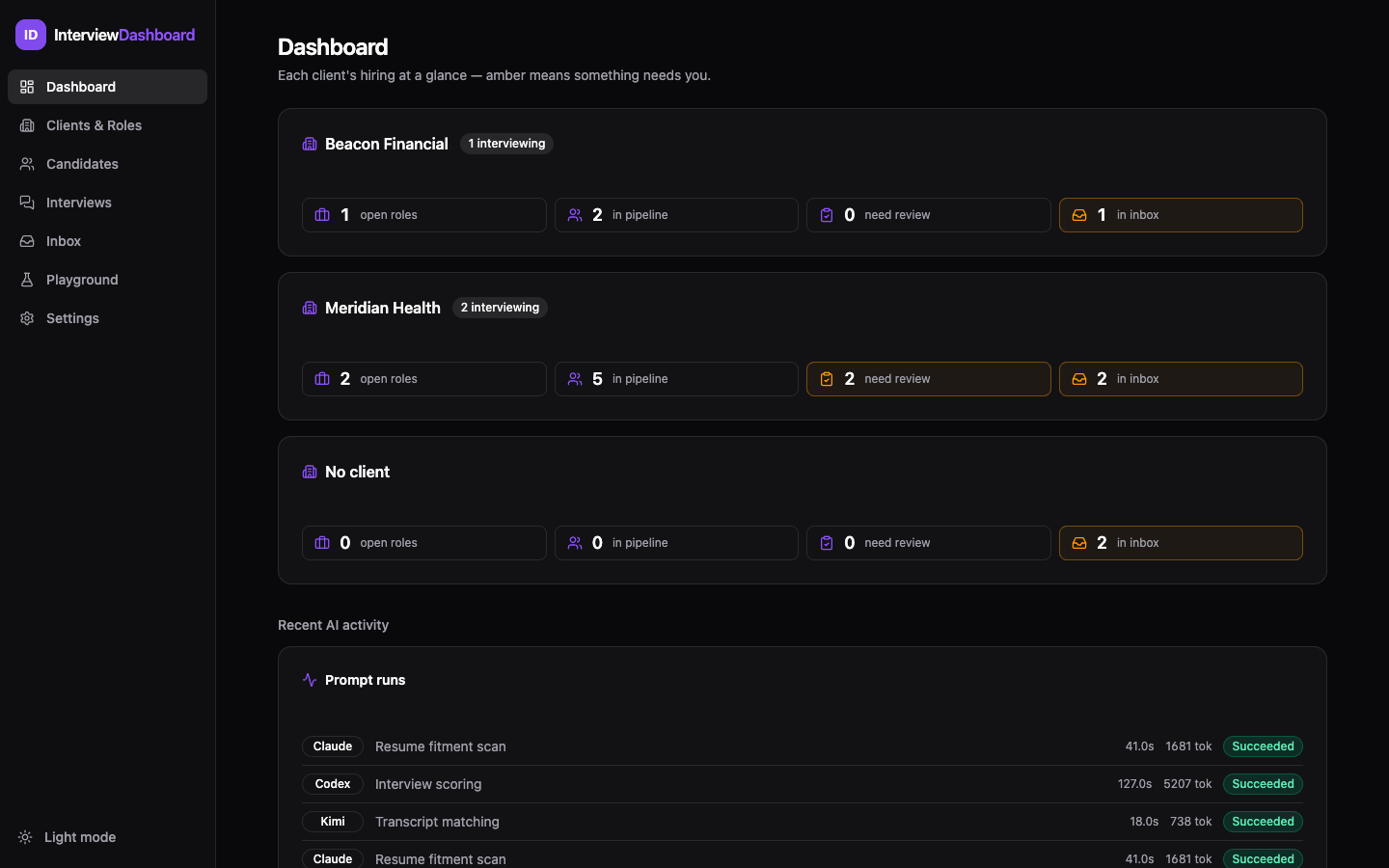
The Dashboard is your home screen: one card per client with open roles, people in pipeline, reviews waiting on you, and unprocessed inbox items — anything that needs attention shows amber. Below it, Recent AI activity lists every AI run (provider, task, duration, tokens, status) as it happens.
Getting started
Requirements
- Windows or macOS
- An active Claude Pro/Max, ChatGPT Plus/Pro/Team, or Kimi membership
- The matching CLI installed and signed in (see AI providers)
Install & activate
- Download and install InterviewDashboard (link in your purchase email).
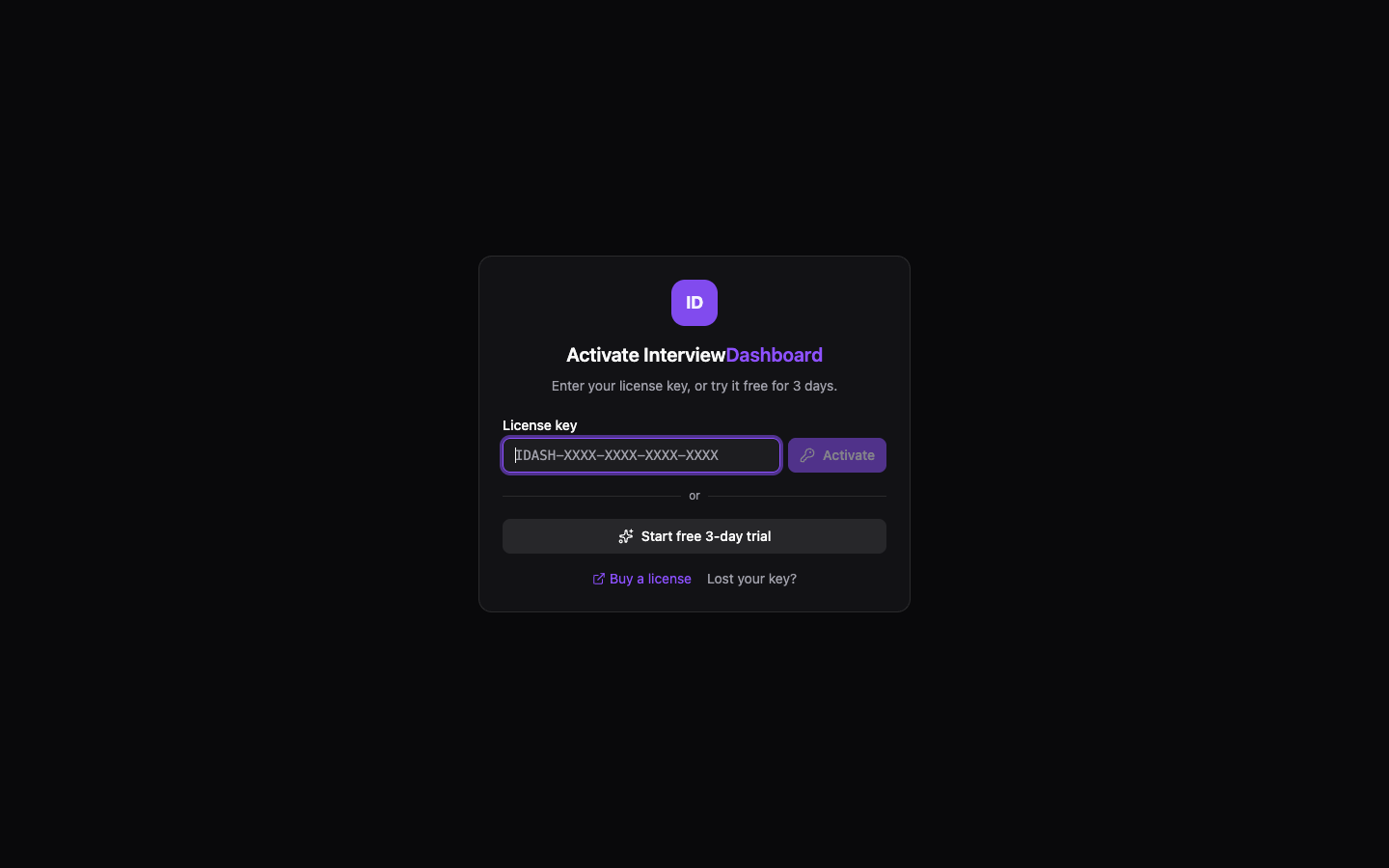
- Launch the app and paste your
IDASH-…license key — or click Start free 3-day trial to evaluate first. You can also reach the store and key recovery straight from this screen. - Activation registers the machine against your license (2 machines per license by default).
Setup wizard
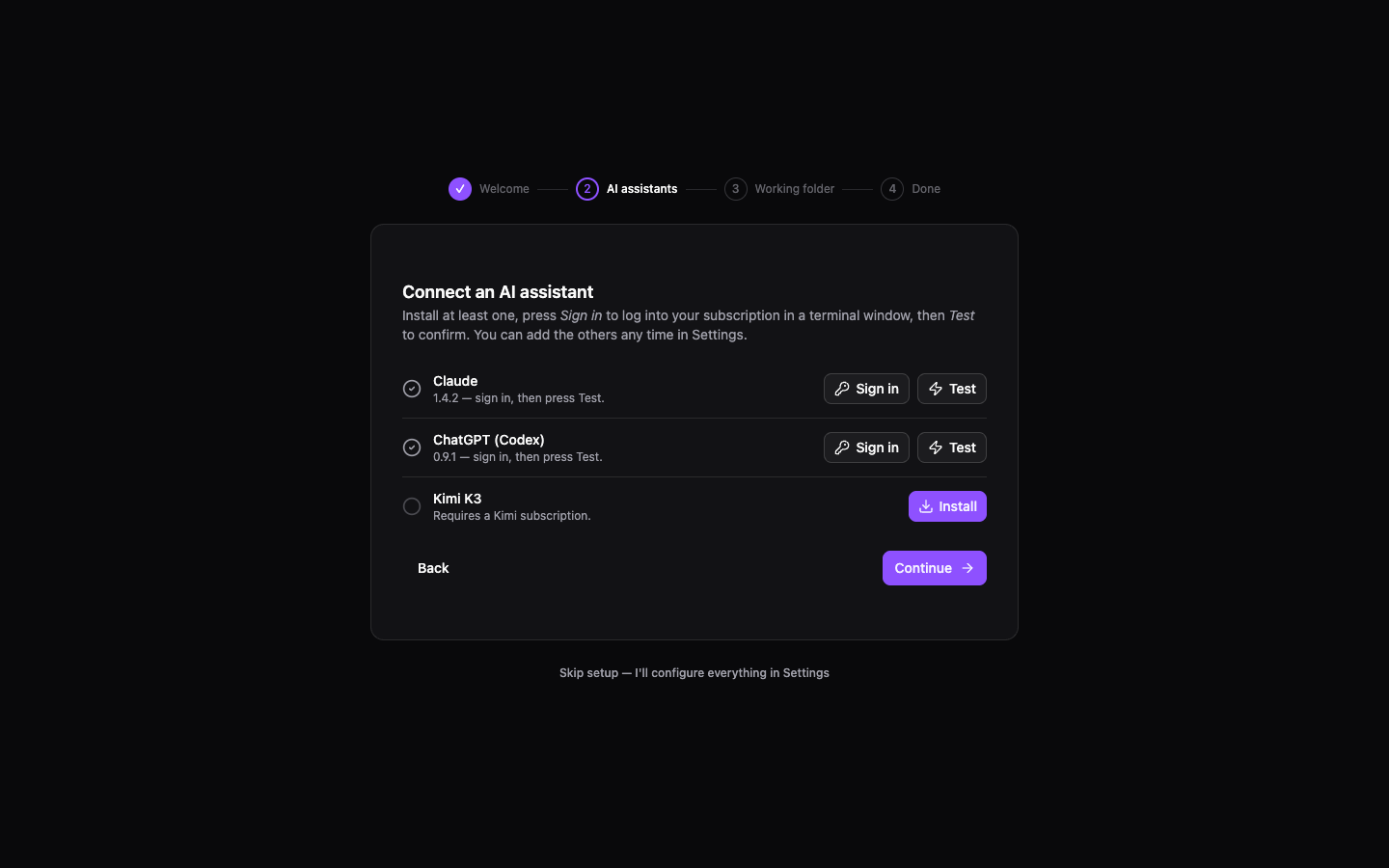
On first run, a 4-step wizard gets you ready: Welcome → AI assistants → Working folder → Done. The assistants step detects which provider CLIs are installed and lets you Install, Sign in, and Test each one — Continue unlocks once at least one is installed. You can skip the wizard and do everything later in Settings.
The working folder you pick is where your client folders live. Creating a client builds this structure automatically:
AI providers
InterviewDashboard never calls an AI API directly. It runs the provider CLI installed on your machine as a headless subprocess, so usage bills to your subscription.
- Claude Code — requires Claude Pro or Max.
- Codex CLI — requires ChatGPT Plus, Pro, or Team.
- Kimi Code — requires a Kimi membership.
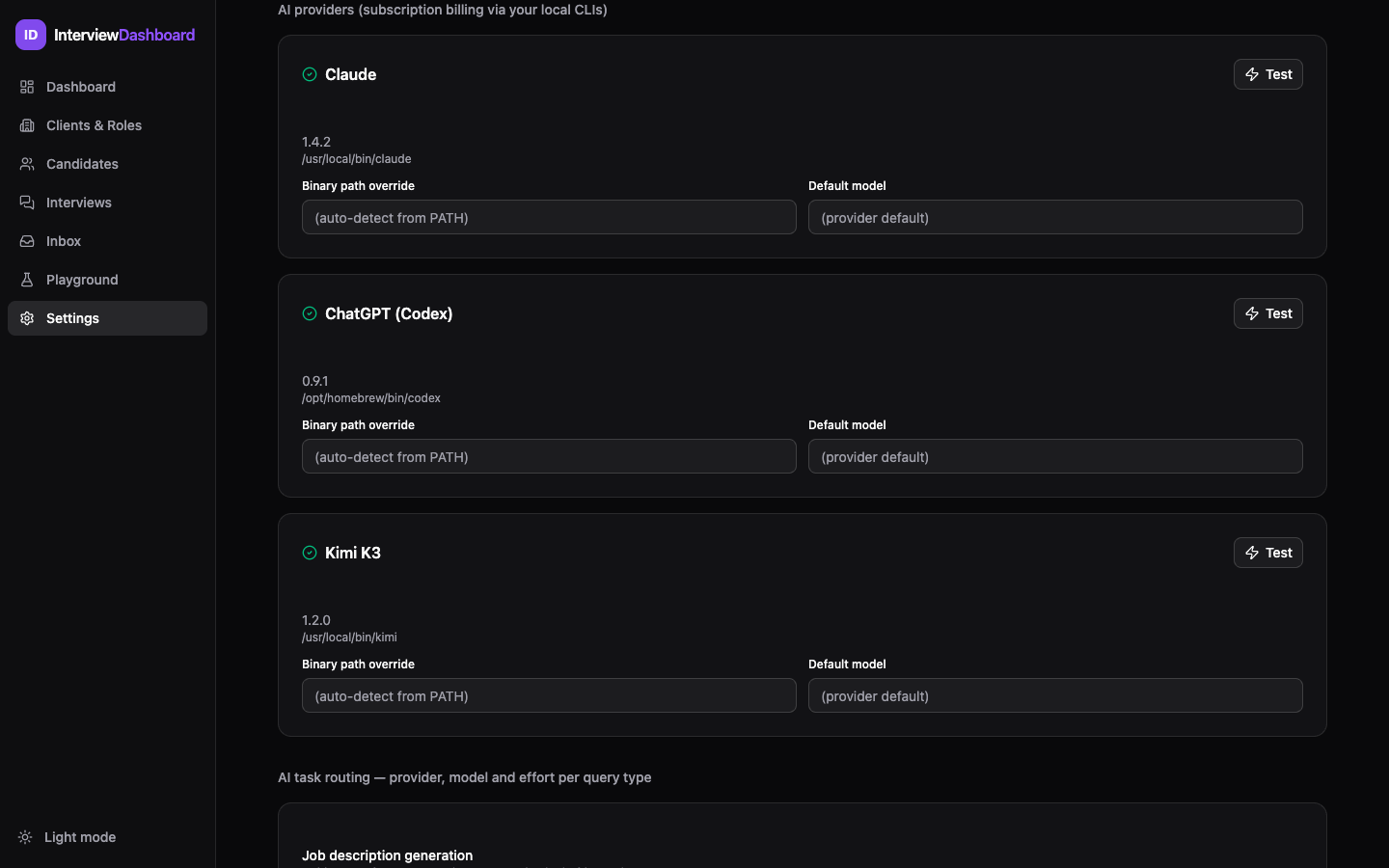
Open Settings → AI providers to confirm detection. Each provider card shows the detected version and binary path, with Install (if missing), Sign in (if installed but not authenticated), and Test buttons. You can override the binary path and set a default model per provider. Use one provider or all three — and route different task types to different models (see model routing).
Clients & roles
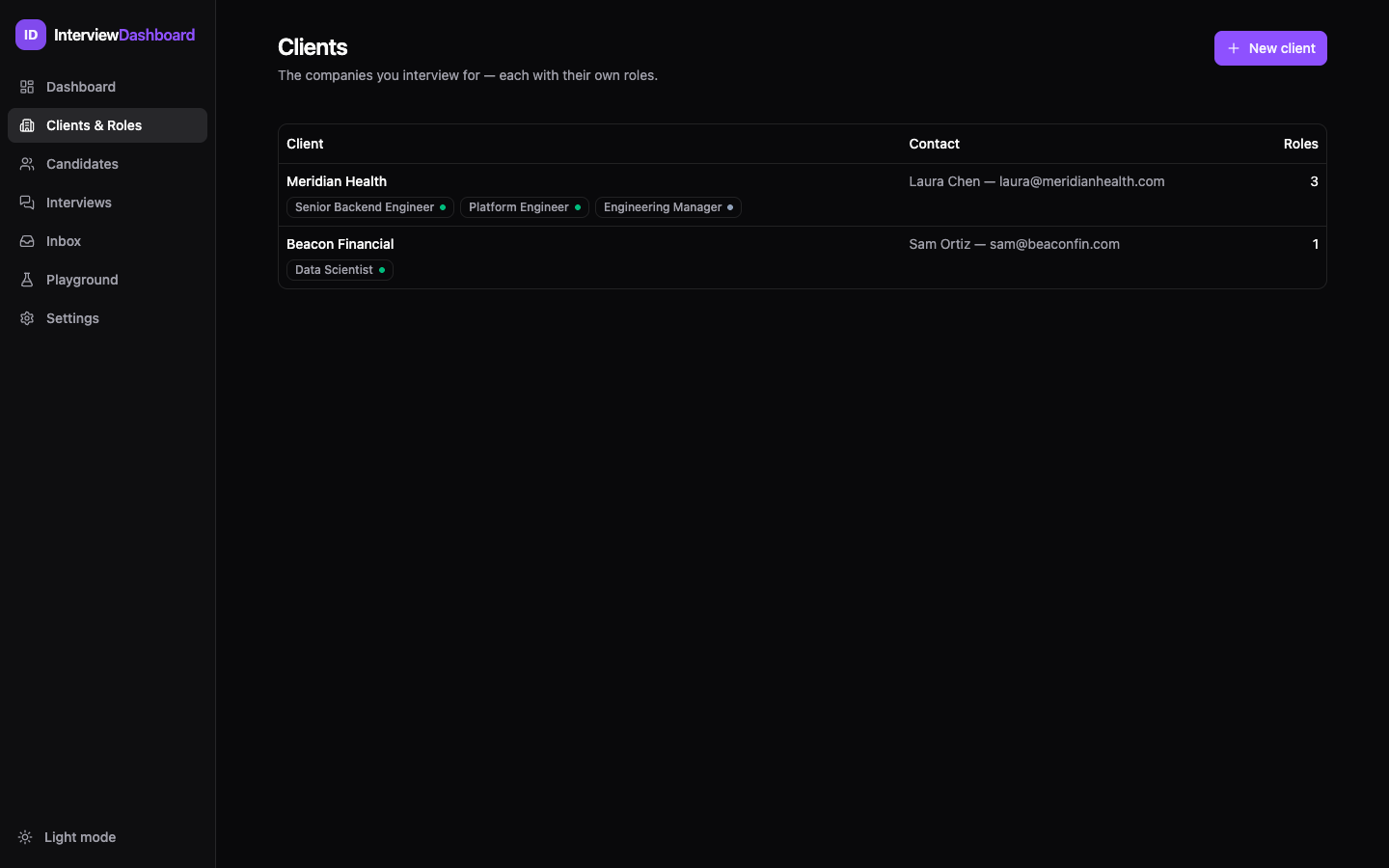
The app mirrors how recruiting firms work: clients own roles, roles own candidates and interviews.
- Create a client per account you recruit for (Clients & Roles → New client) — the folder tree scaffolds automatically.
- Create roles under the client with title, department, level, and location.
- Role statuses flow
draft → open → on_hold → closed. Only open roles are included in automatic resume fit scans. An emerald dot marks open roles in the clients table. - Roles created before clients existed show up under “Roles not yet assigned to a client” — assign them inline, no data loss.
Job descriptions
On a role's Job description tab, either paste rough notes (responsibilities, must-haves,
nice-to-haves) and click Generate with AI for a polished JD — it folds in your company
boilerplate from Settings — or import an existing .docx/.pdf. JDs are
always rendered formatted, never as raw markup.
Rubrics
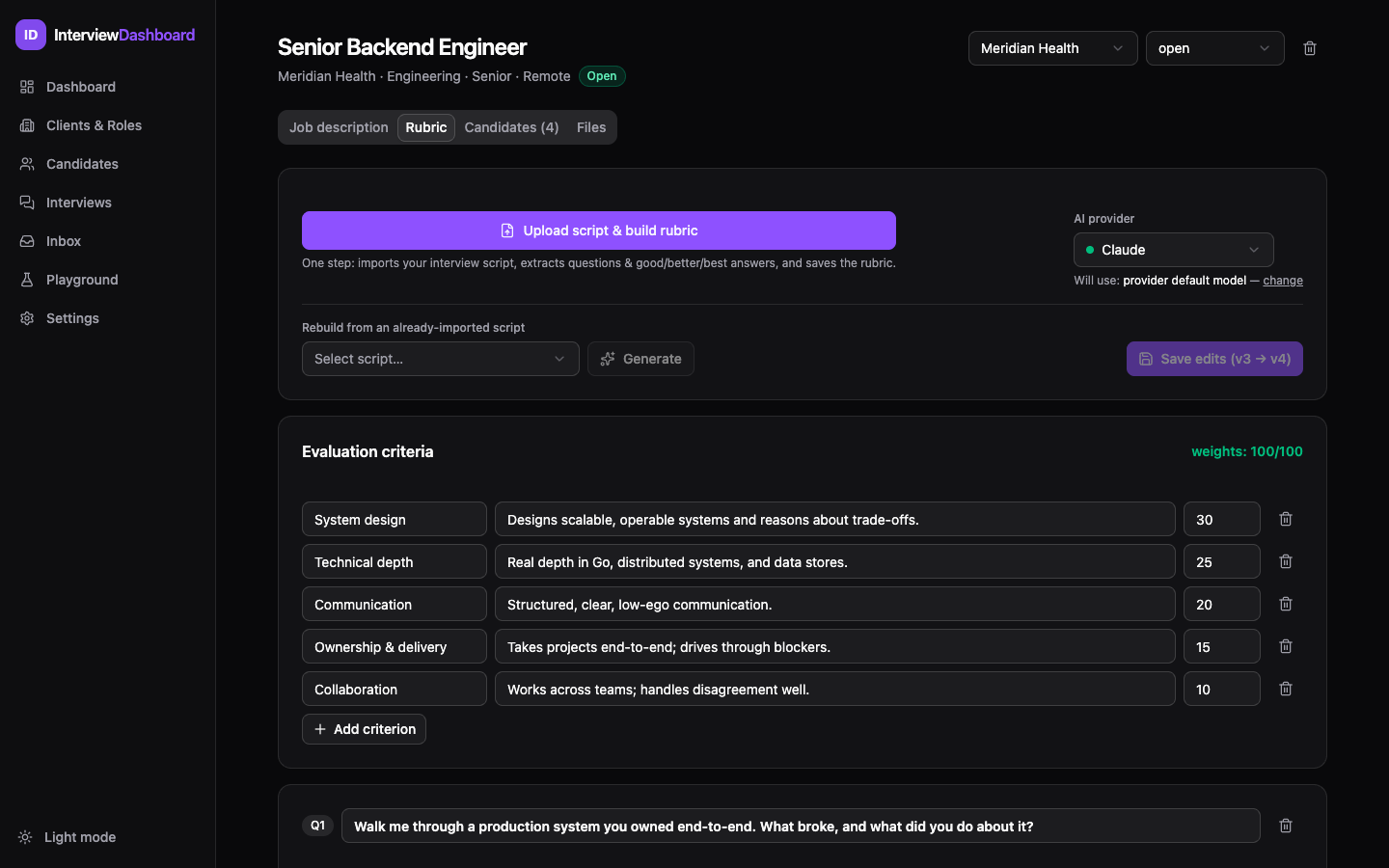
A rubric is what makes interview scores consistent across interviewers. Open a role's Rubric tab and click Upload script & build rubric with the interview script your team uses. One step imports the script, extracts questions, writes tiered answers, and saves the rubric. You can also rebuild from an already-imported script later.
- Weighted evaluation criteria (weights must sum to 100 — the editor shows a running total) — e.g. System design 30, Technical depth 25, Communication 20.
- Every scripted question, each with good / better / best tiered reference answers — what a 3, a 4, and a 5 look like, in your firm's own language.
Rubrics are fully editable (criteria, weights, questions, tiers) and versioned — saving edits bumps the version (v3 → v4) and keeps the history. The active version is what interview reviews score against.
Resume inbox
The inbox automates top-of-funnel screening:
- Drop a resume (
.pdfor.docx) into a client'sResumes/folder — or the optional global watch folder, which ranks against every open role across all clients. Originals are never moved or deleted. - The app extracts the text and runs a fitment scan against every open role for that client.
- Each scan produces a 0–100 fit score, a verdict — strong fit / good fit / weak fit / not a fit — plus a summary and pros/cons per role.
Scores calibrate roughly as: 80+ interview immediately · 60–79 worth a screen · 40–59 weak · <40 not a fit.
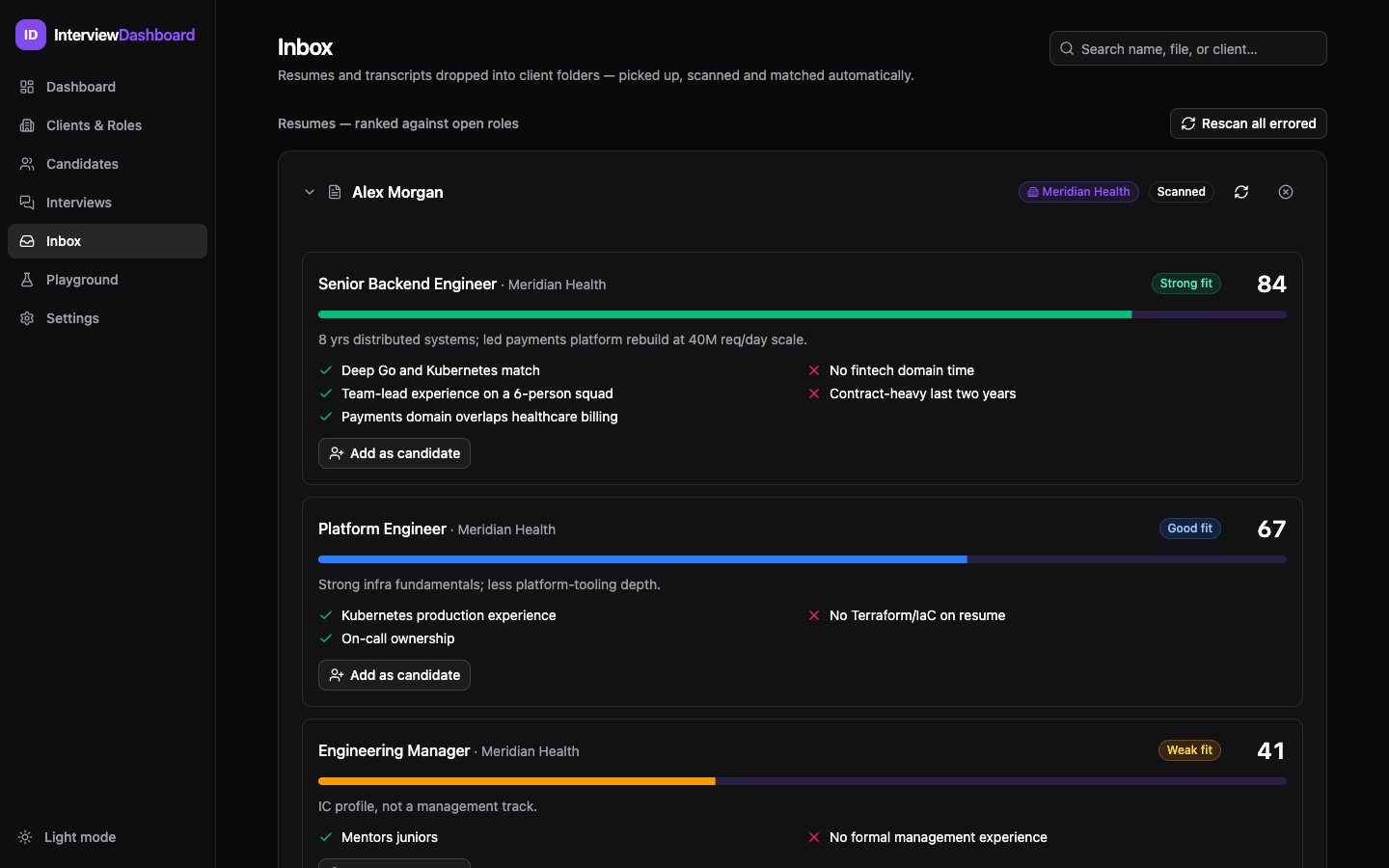
Cards also show Running scans in progress and Error states (e.g. a scanned-image PDF with no extractable text — paste the text manually, then rescan). Promising scan? Add as candidate drops the person straight into the role's pipeline.
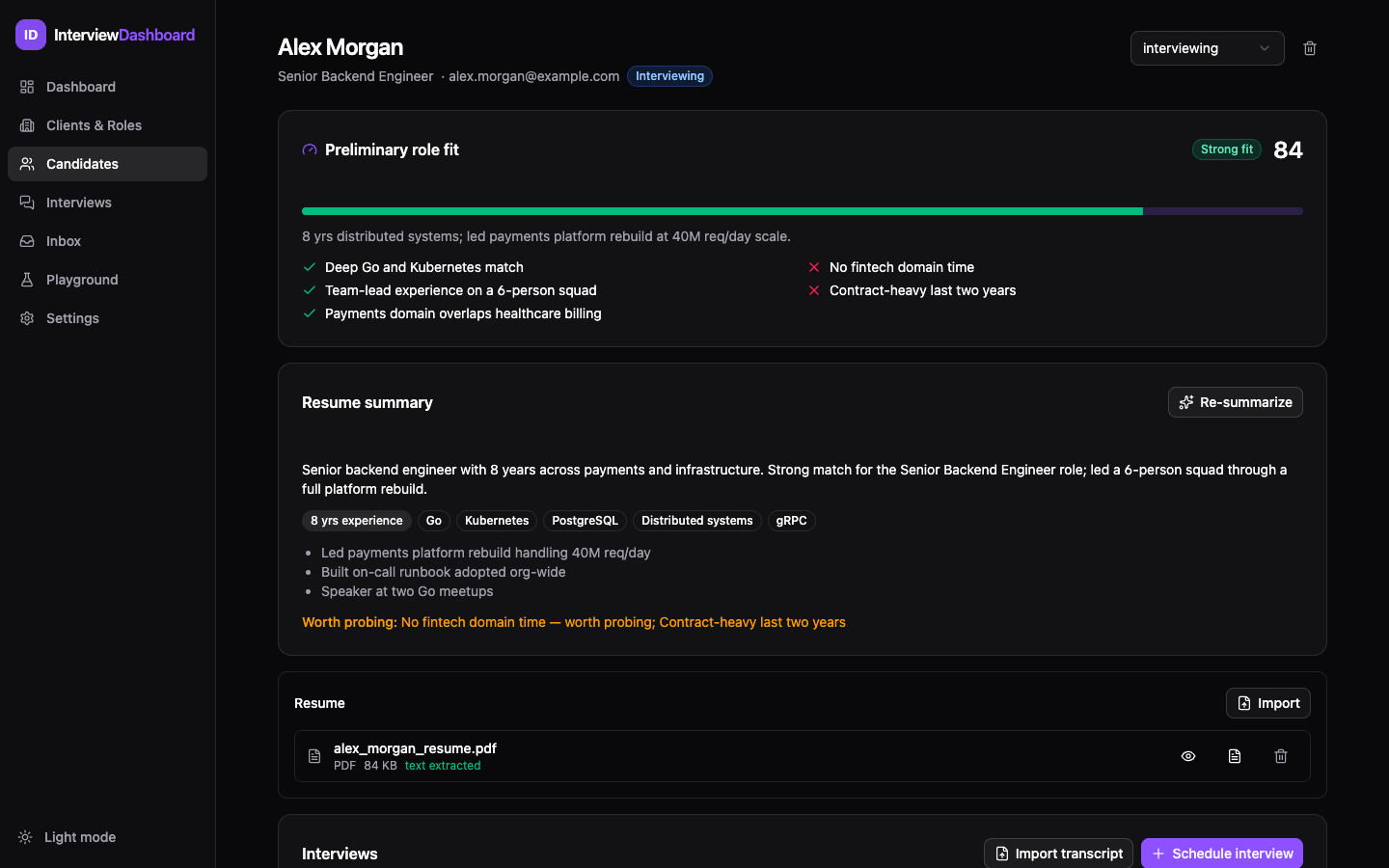
The candidate page then shows the Preliminary role fit card and an AI Resume summary: years of experience, key skills, notable achievements, and amber “Worth probing” flags for the interviewer.
Interviews & transcripts
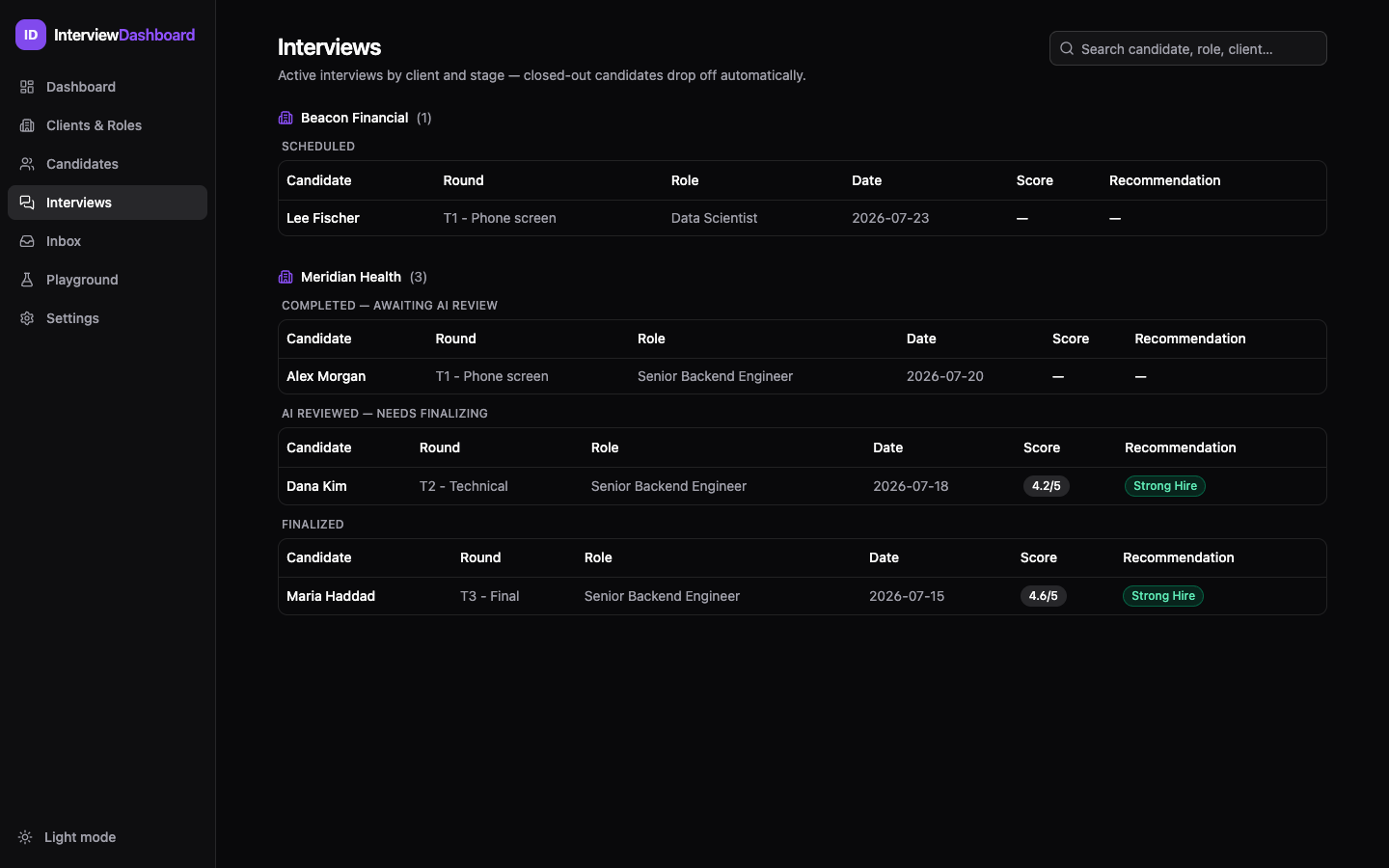
From a candidate page, Schedule interview with a round label (Phone screen, Technical, Onsite…), interviewer, and date. The Interviews page groups everything by client, then by stage: Scheduled → Completed — awaiting AI review → AI reviewed — needs finalizing → Finalized. Closed-out candidates drop off automatically.
Transcript auto-matching
After the interview, drop the transcript into the client's Interview Transcripts/
folder (or use Import transcript on the candidate page). The app matches it to the right
candidate and round by filename convention:
If the name is ambiguous, AI matching is used as a fallback; anything unmatchable lands in the inbox's Transcripts section as Unmatched, where you can assign it to a candidate manually. A matched transcript attaches to the pending interview and bumps it to completed — ready for review.
AI interview review
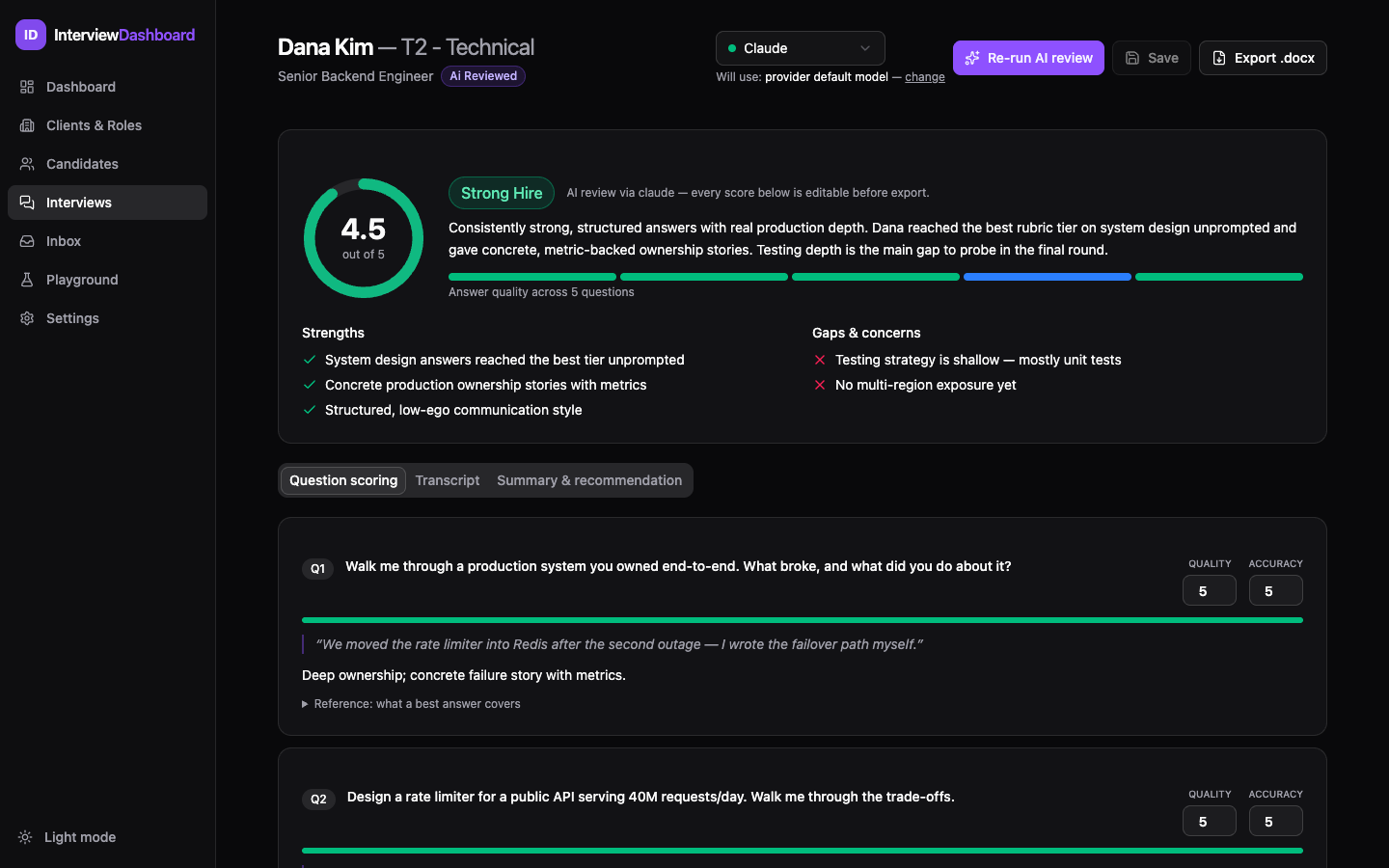
Open a completed interview and click Run AI review. Two passes run back-to-back:
- Alignment — maps each scripted question to the candidate's verbatim answer in the transcript.
- Scoring — scores every answer Quality 1–5 and Accuracy 1–5 against your rubric's good/better/best tiers, with a verbatim quote as evidence for each score.
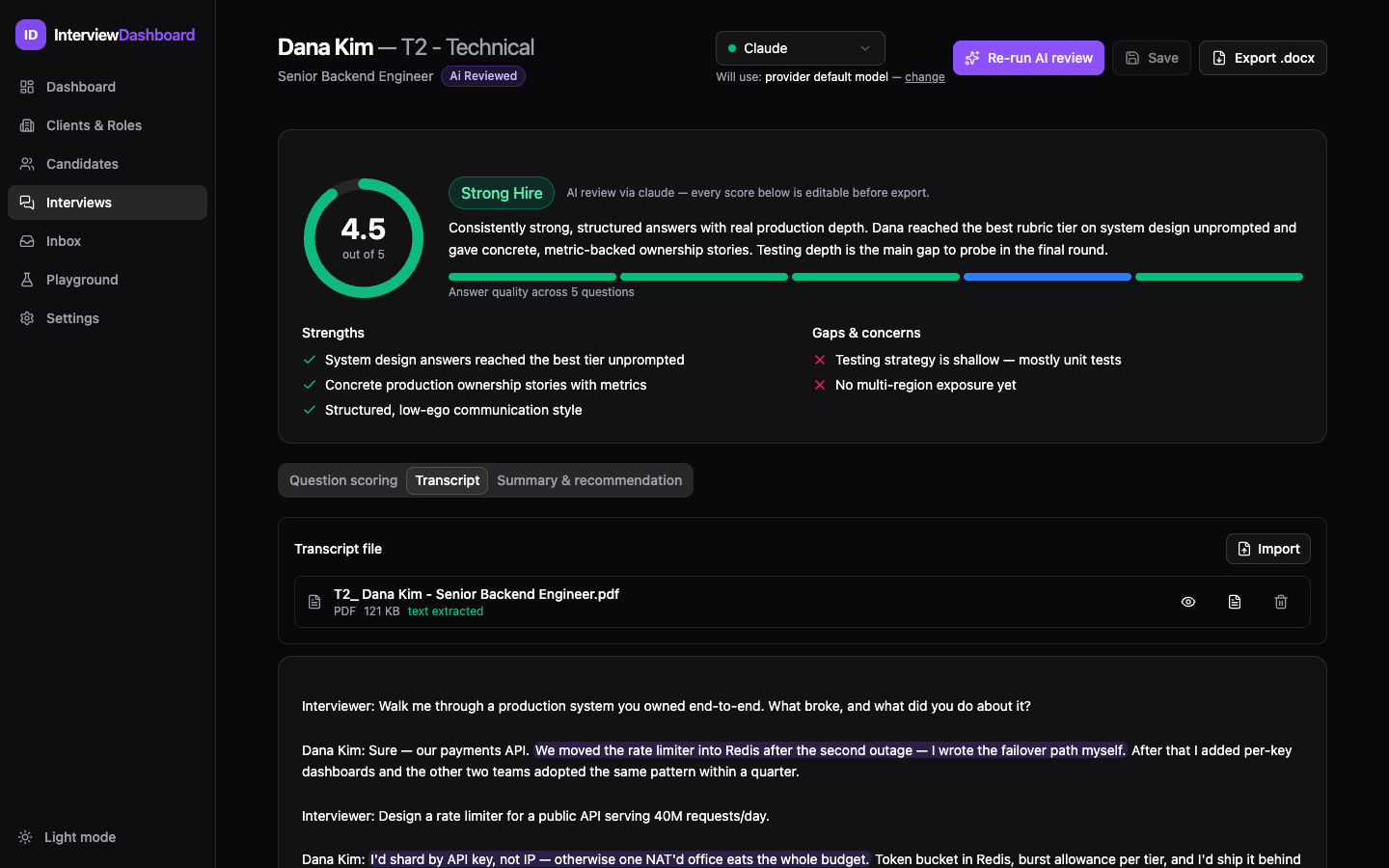
You get a weighted overall score (criteria weights applied, X.X / 5), a recommendation (Strong Hire / Hire / No Hire / Strong No Hire), strengths, gaps & concerns, and a per-question quality strip. The Question scoring tab shows every score with its evidence quote and a collapsible “what a best answer covers” reference; the Transcript tab highlights each matched answer in place.
Click Export .docx to produce a formatted feedback form — it's automatically filed in the
client's Interview Feedback Forms/ folder.
Sync between computers
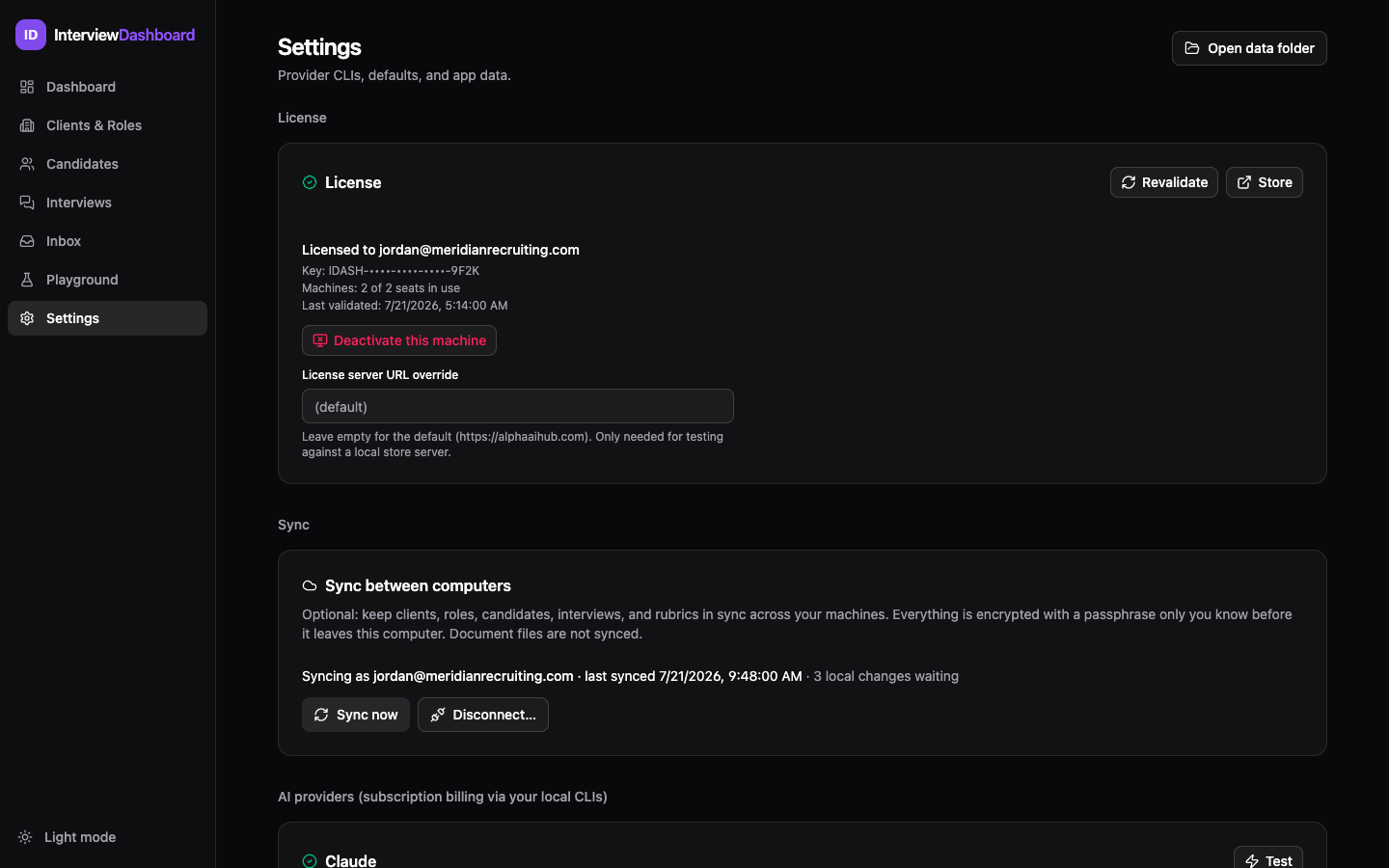
Run InterviewDashboard on more than one machine (say, a laptop and a desktop)? Settings → Sync between computers keeps clients, roles, candidates, interviews, and rubrics in sync across them. It's opt-in and off by default.
- End-to-end encrypted. Every change is encrypted on your machine with a key derived from a passphrase only you know, before anything leaves the computer. The server stores and serves opaque blobs — it can never read your data.
- Your email is the account. Enter it, confirm with a one-time code, and set a sync passphrase. Other machines sign in with the same email and passphrase.
- Documents are not synced — resume/transcript files stay local; the database records do.
- Sync runs automatically 5 seconds after launch and every 15 minutes, or any time with Sync now. The panel shows the account, last sync time, and how many local changes are waiting.
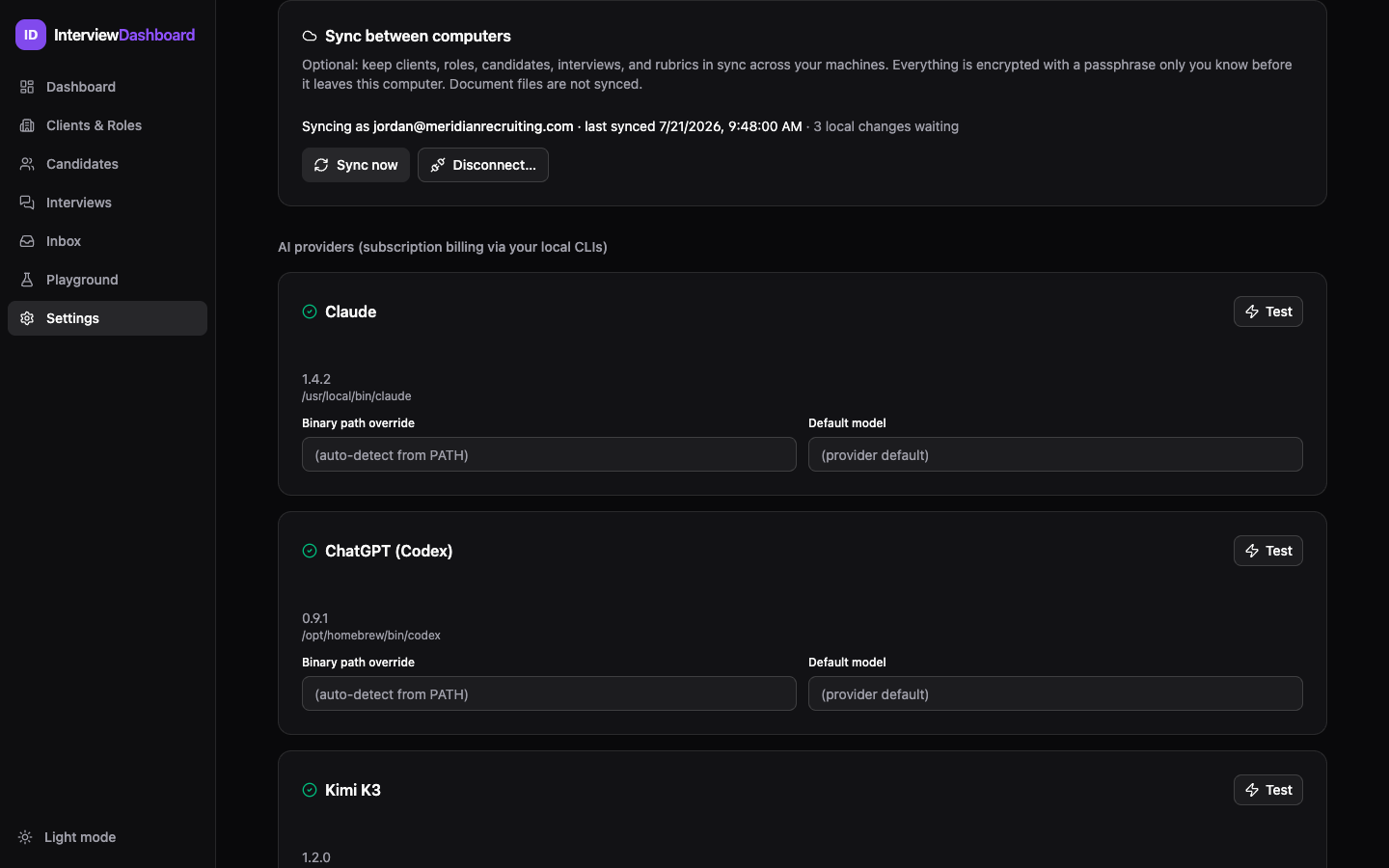
Disconnect… offers two options: Disconnect this device (stops syncing here, keeps the server copy for your other machines) or Disconnect & wipe server copy (deletes the encrypted log everywhere).
Settings & model routing
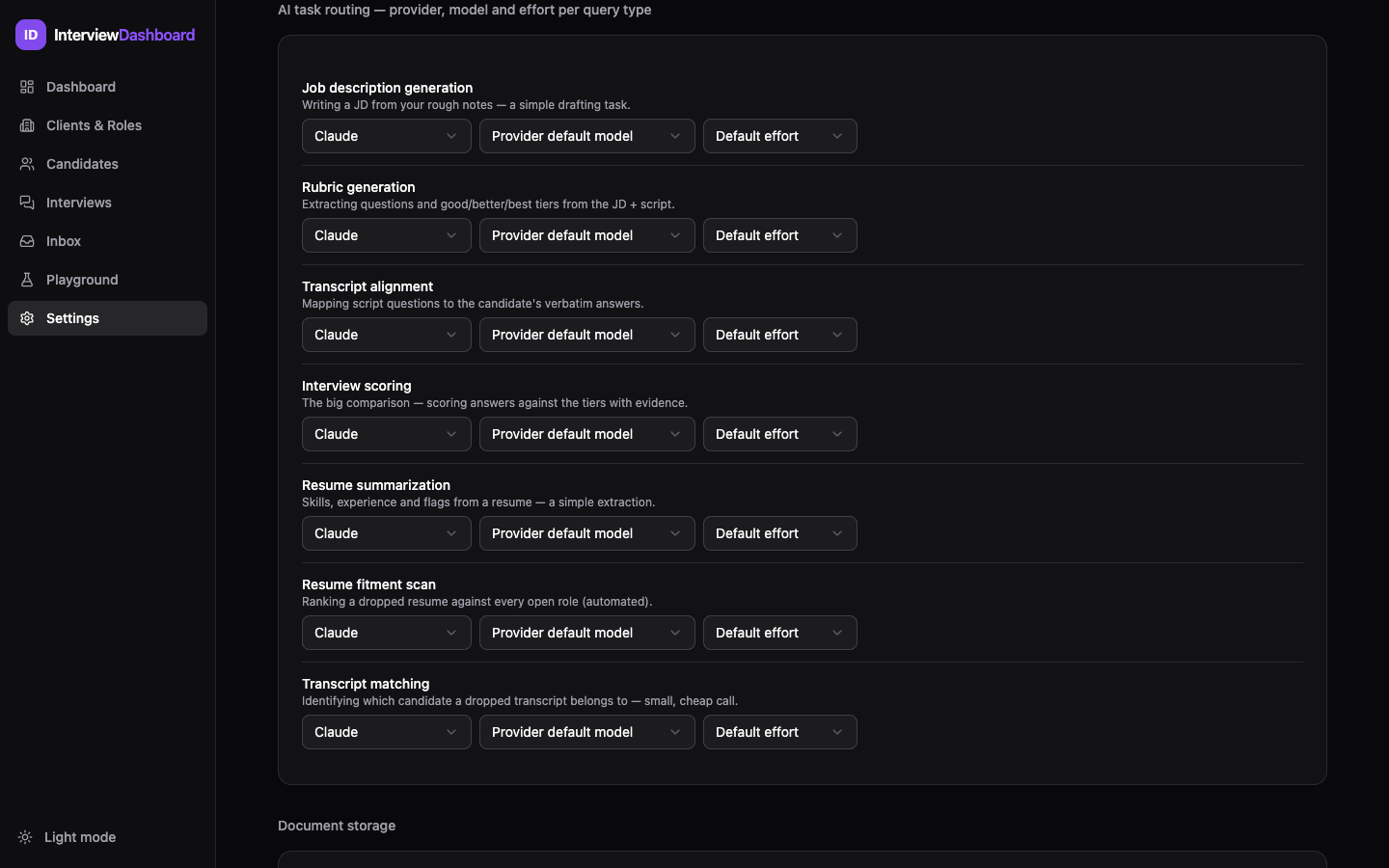
Settings → AI task routing assigns each of the seven AI task types to its own provider, model, and effort level:
- JD generation · rubric generation · transcript alignment · interview scoring · resume summarization · resume fitment scan · transcript matching
- Each row has curated model choices per provider plus Custom… for any model id, and an effort selector (Kimi has no effort concept, so it's hidden there).
A common pattern: a fast, cheap model for high-volume matching and scanning, and a flagship model for interview scoring where judgment matters most.
Further down Settings:
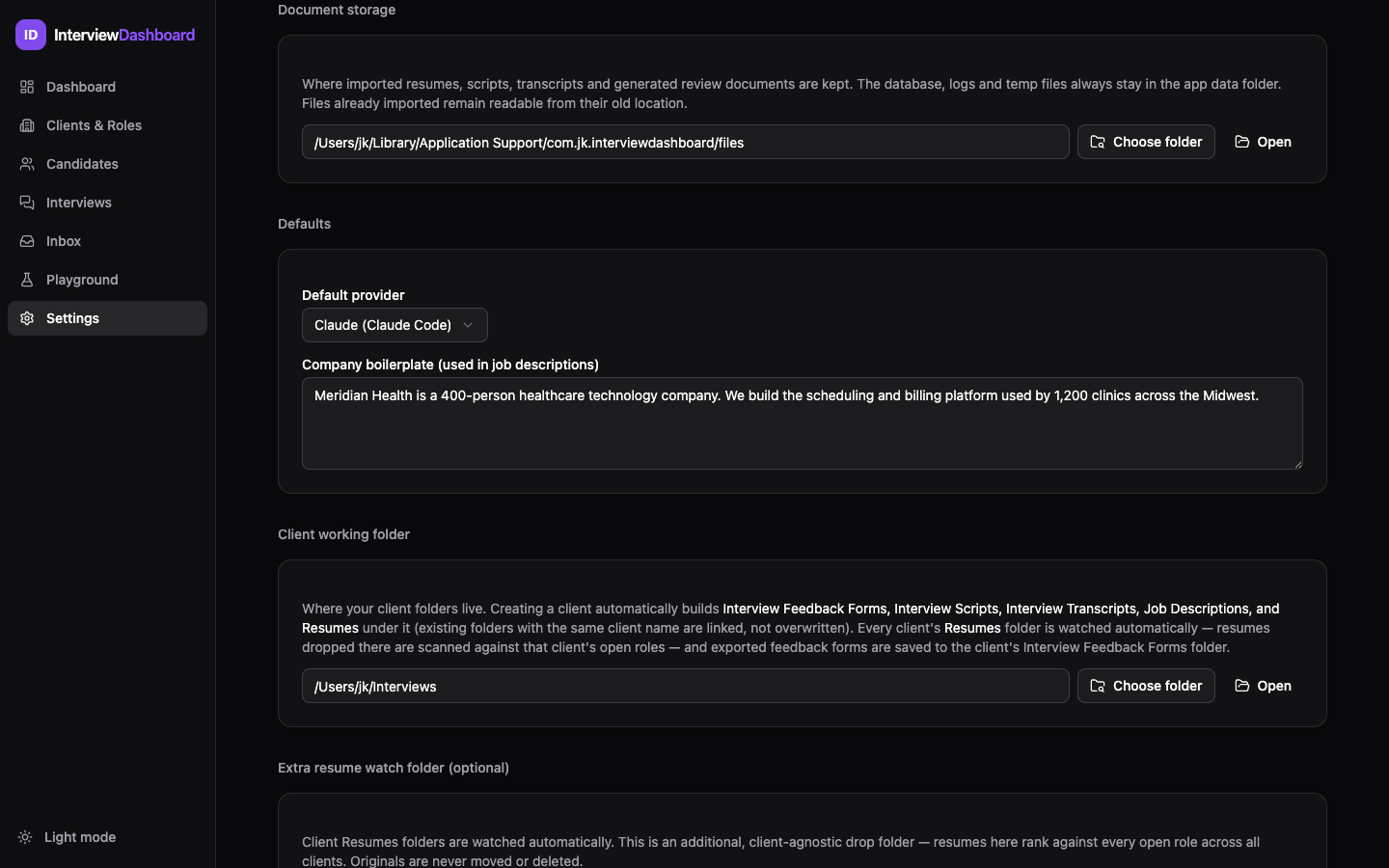
- Document storage — where imported resumes, scripts, transcripts, and generated review documents are kept. The database, logs, and temp files always stay in the app data folder; files already imported remain readable from their old location.
- Defaults — the default provider, and your company boilerplate (folded into generated JDs).
- Client working folder — where client folders live.
- Extra resume watch folder — an additional client-agnostic drop folder; resumes there rank against every open role across all clients.
Every AI run is recorded in prompt runs — provider, model, tokens, duration, status — visible on the dashboard's Recent AI activity card and the floating activity panel (bottom right, with cancel buttons while runs are active). That's your audit trail for exactly what the AI did and when. The Playground page lets you test prompts against any provider/model directly, with streaming output and token usage.
License & account
- Your keys: the customer portal shows every key on your account, its status, and which machines are activated. Keys are also re-emailable from license recovery.
- Free trial: new installs can start a 3-day free trial from the activation screen — no key needed. A banner counts down the remaining days.
- Machines: each license activates on up to 2 machines by default. Deactivate a machine from the portal, or in-app via Settings → License → Deactivate this machine — freeing a seat when you replace a computer.
- Validation: the app re-validates periodically online; Revalidate forces a fresh check. If a key is revoked (e.g. after a refund or reissue), affected installs fail their next validation and ask for a new key.
- Need more seats or a firm-wide arrangement? Contact us about volume licensing.